.svg)
Switch your Timble subscription from monthly to annual billing, or from annual back to monthly.
- Click your profile picture in the top right, then click Settings.
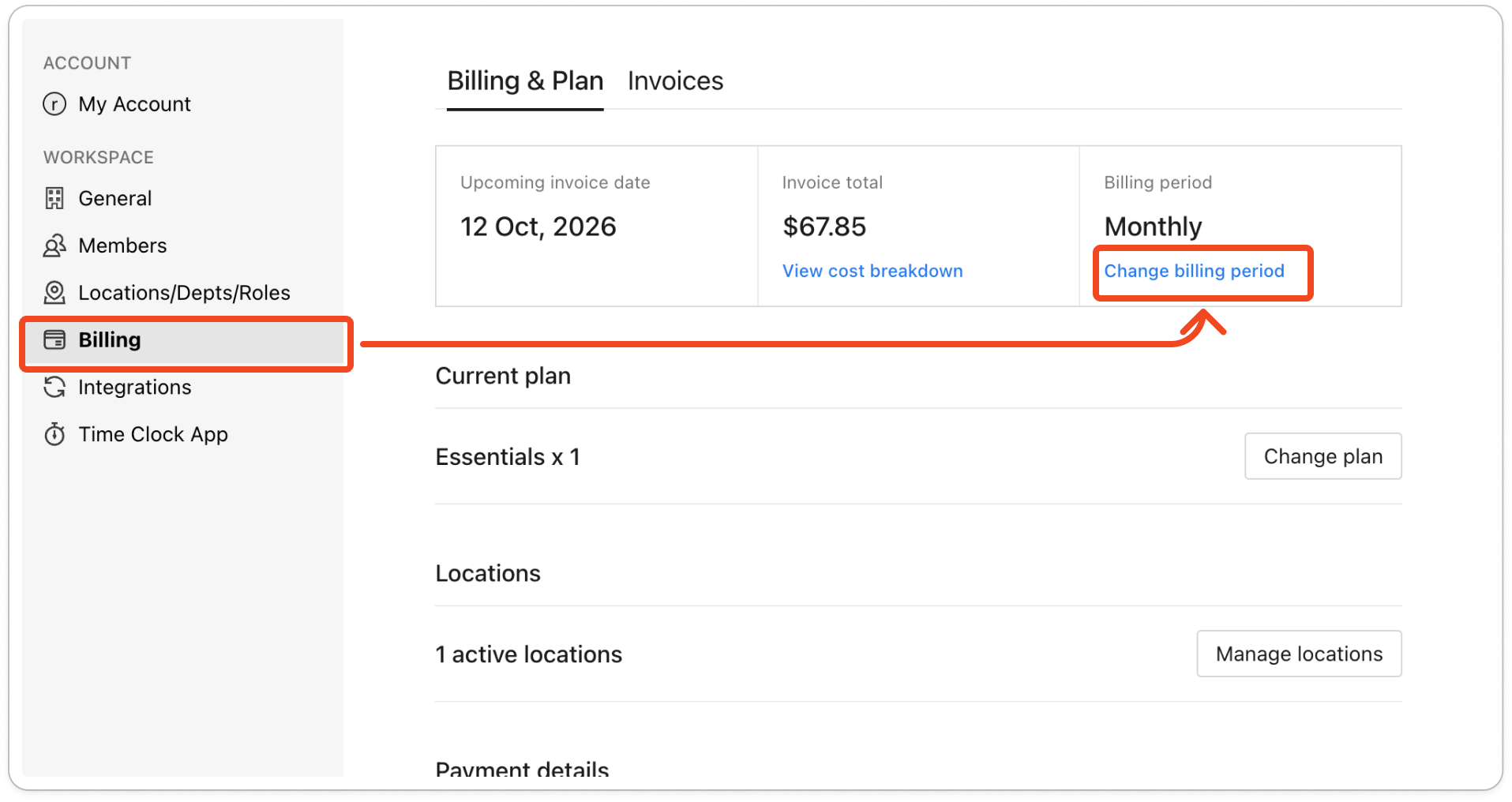
- Click Billing on the left. The Billing & Plan tab opens.
Note: If the tab says "Your account is on manual billing.", there is no billing period to change here. Email support@timble.co.nz instead.
- In the Billing period box at the top of the tab, click Change billing period. The box shows how you're billed now.
- The Change billing period window opens with the other billing period already selected. If you pay monthly, it offers Annually. If you pay annually, it offers Monthly.
- Check the Order summary. It shows the date the change takes effect, the new price per location, and the total including GST.
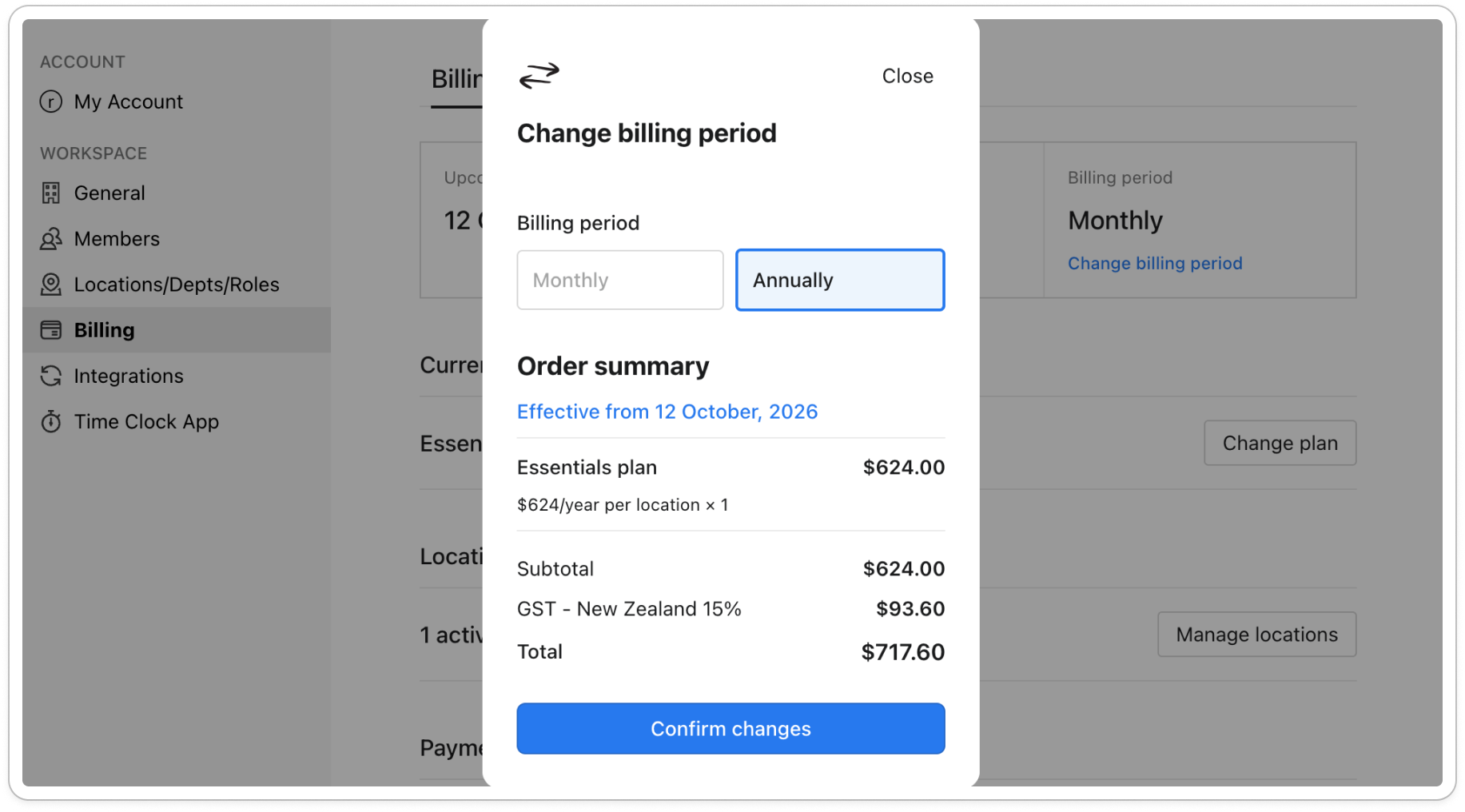
- Click Confirm changes.
Note: A switch from monthly to annual starts today, and the total shown is charged to your payment method. A switch from annual to monthly starts when your current year ends, and the rest of that year isn't refunded. During a free trial, the change applies straight away and nothing is charged until the trial ends.


