.svg)
Tick the roles a member works so they can be rostered in the right department and location.
- Click your profile picture in the top right, then click Members.
- Click the member's name. Their profile opens.
- Click Assignments in the list on the left.
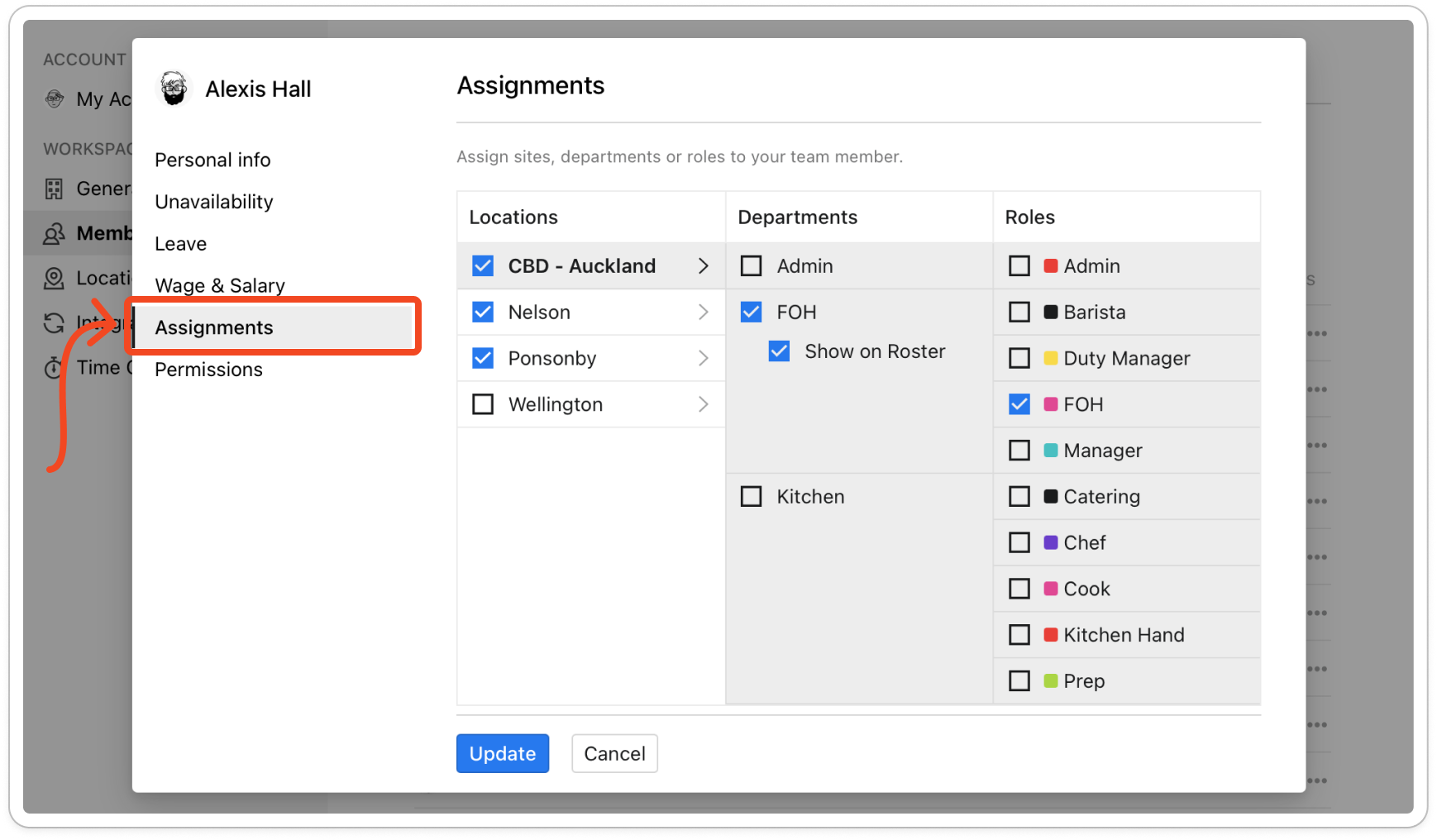
- Under Locations, click the name of the location the member works at. Its departments and roles appear in the two columns beside it.
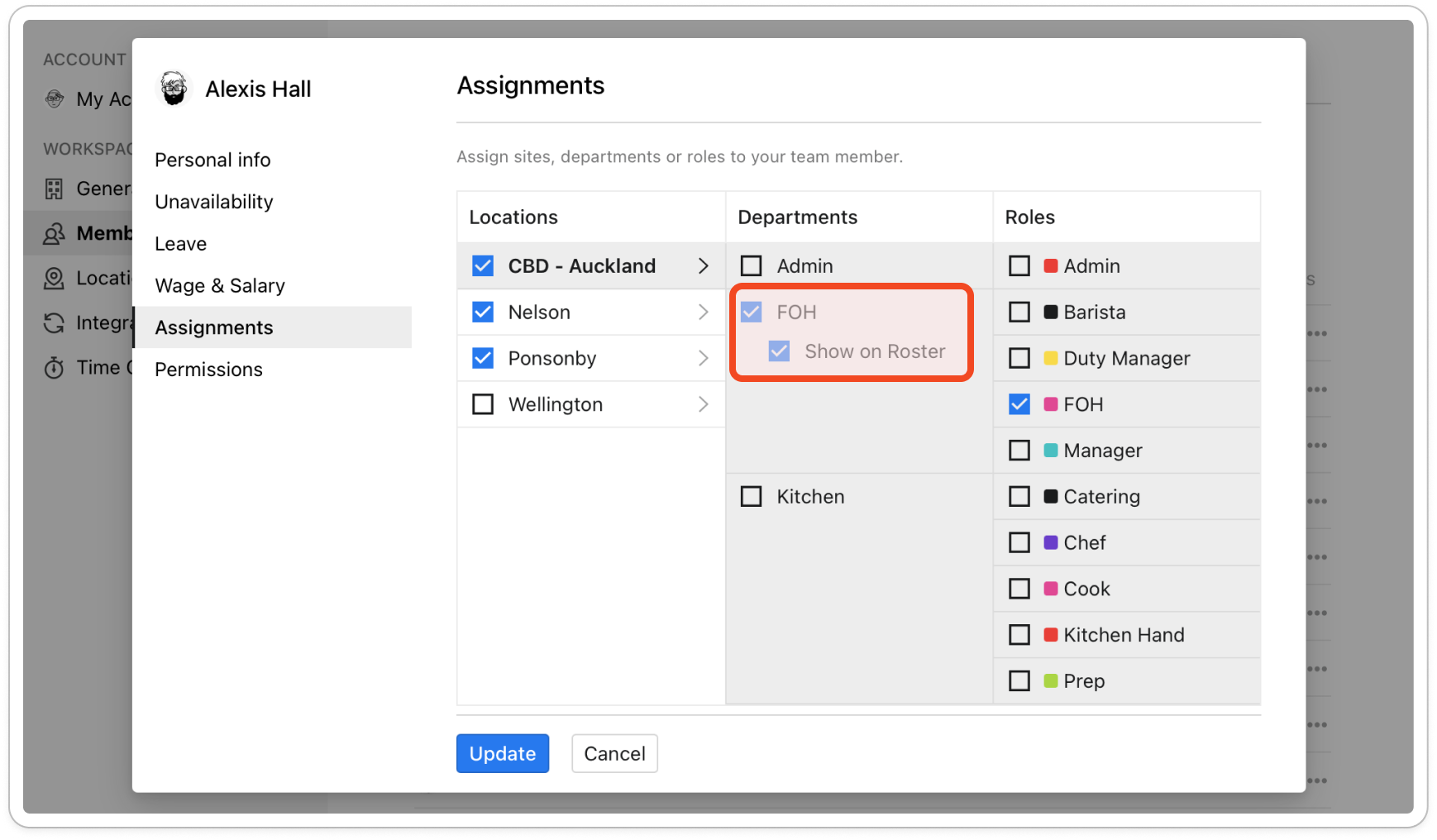
- Under Roles, tick each role the member works there. Ticking a role also ticks its department and location for you.
Tip: If a department has no roles yet, click Add role beside it to create one without leaving the profile.
- To take the member out of a role, untick it. Unticking a department clears all of its roles, and unticking a location clears everything in that location.
- Under each ticked department, leave Show on Roster ticked if the member should appear on that department's roster. Untick it to keep them off the roster there until you give them a shift.
- Repeat from step 4 for any other location the member works at.
- Click Update. The profile closes.
Note: A member has to belong to at least one location, and to at least one department in every location you tick. If something is missing, Timble tells you which when you click Update.


