.svg)
Approve the hours your team has worked so they're ready to export to payroll.
- Click Timesheets at the top of the page.
- At the top left, pick the location, and the department if your business uses departments. Then use the arrows beside the dates to move to the pay period you're approving, or click the dates and set the period yourself.
- Click a member in the list on the left. Their entries appear in the table, and each entry shows a Status of Pending, Approved or Discarded.
- Check the Actual times on each entry against the Planned times. If the actual times are wrong, click the entry, correct them and click Save.
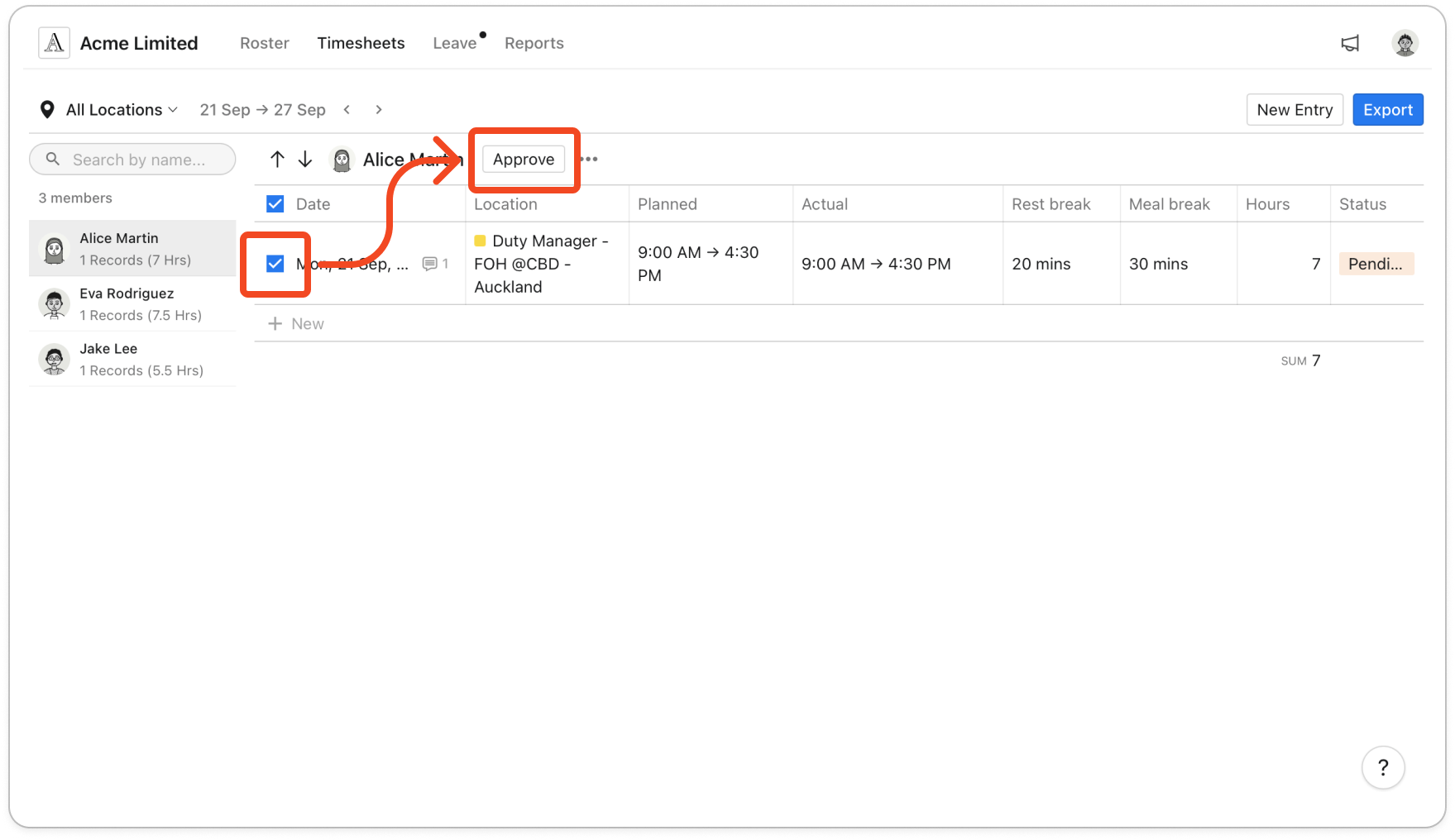
- Tick the box beside the date of each entry you want to approve. To tick every entry at once, use the box beside Date at the top of the table.
- Click Approve beside the member's name. The button only appears once you have ticked at least one entry.
Important: An entry with no finish time can't be approved. Timble shows "This shift is incomplete. Either wait for it to end, or add an end time to finalize and approve." Click the entry, add a Finish Time, click Save, then approve the entry again.
- The entries you ticked now show a Status of Approved. Use the arrows to the left of the member's name to move on to the next member.
Note: Only approved entries go into a payroll export. Pending and discarded entries are left out.
Unapprove or discard an entry
An approved entry can't be edited. To change one, click the entry and click Unapprove, which sets its status back to Pending.
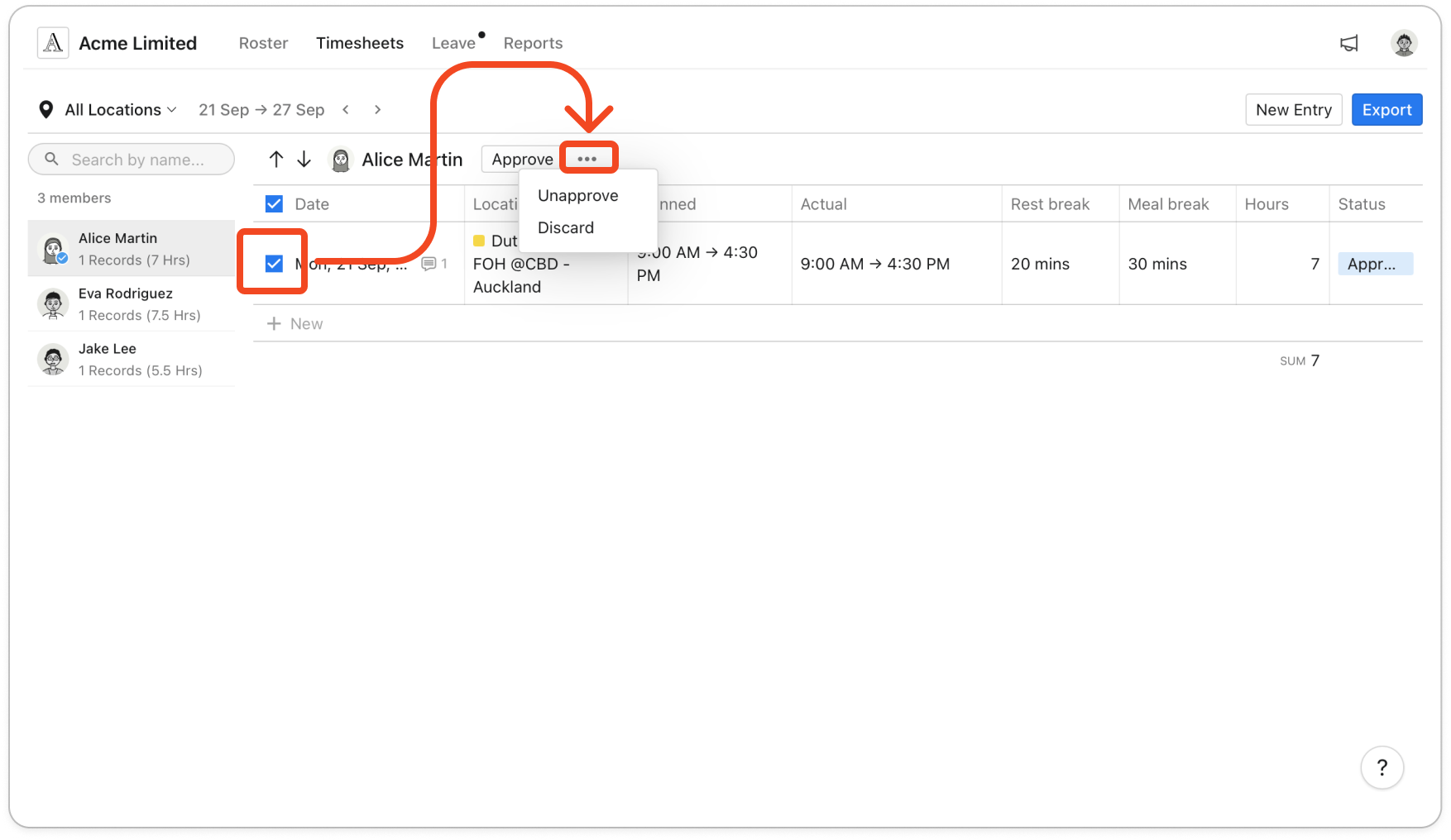
To unapprove several entries at once, tick them, click the three dots button beside Approve, then click Unapprove. For a shift that shouldn't be paid, click Discard in the same menu instead, which sets the entry's status to Discarded.
A discarded entry can't be opened. To bring one back, tick the entry, click the three dots button, then click Unapprove. The entry returns to Pending.