.svg)
When a manager requests leave, they pick one person to approve it. If that person is you, this is how you answer the request.
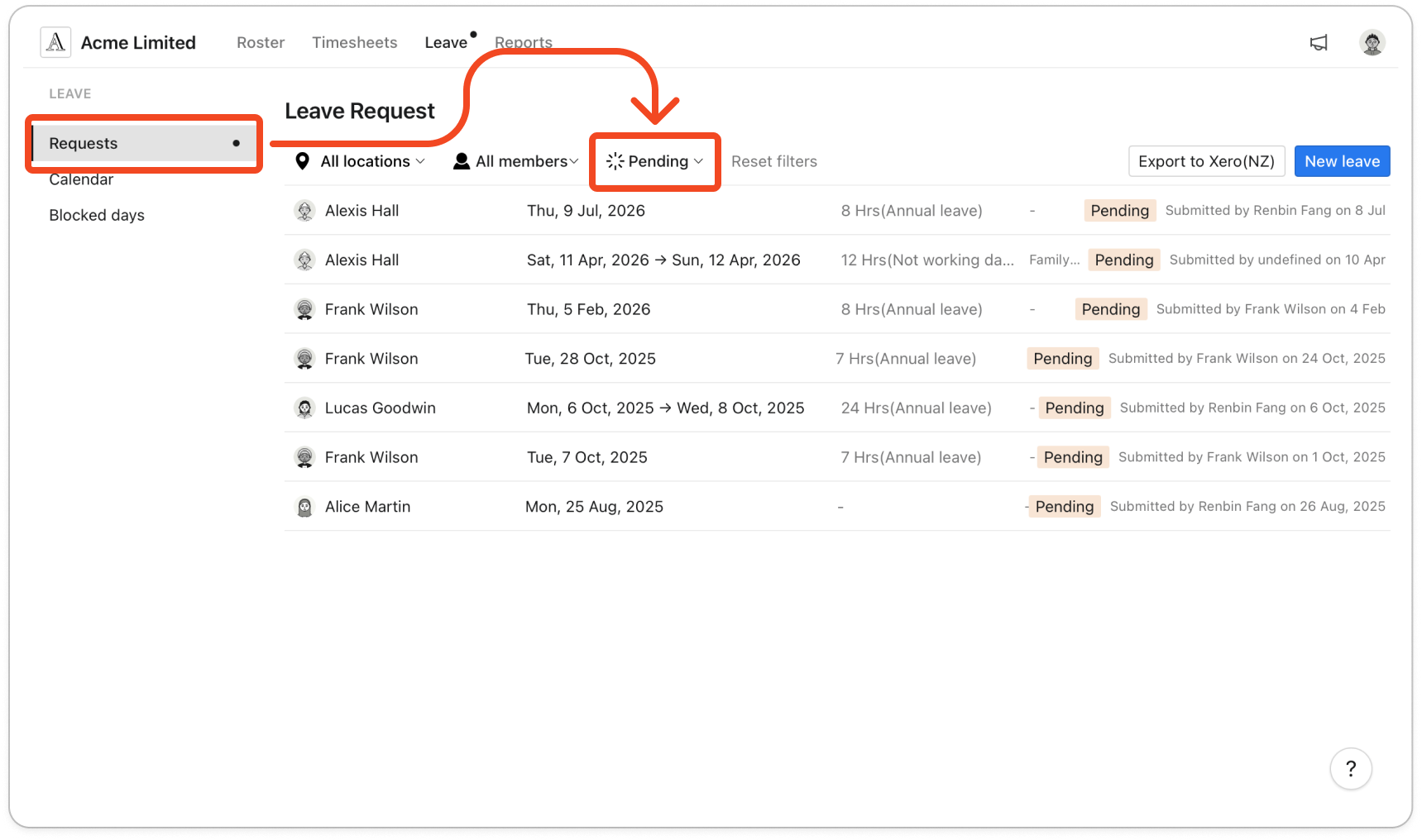
- Click Leave at the top of the page. A dot beside Leave means a request is waiting for you.
- The Requests list opens with the status filter set to Pending. Each row shows the manager's name, the dates, the hours and leave type, and who submitted the request and when.
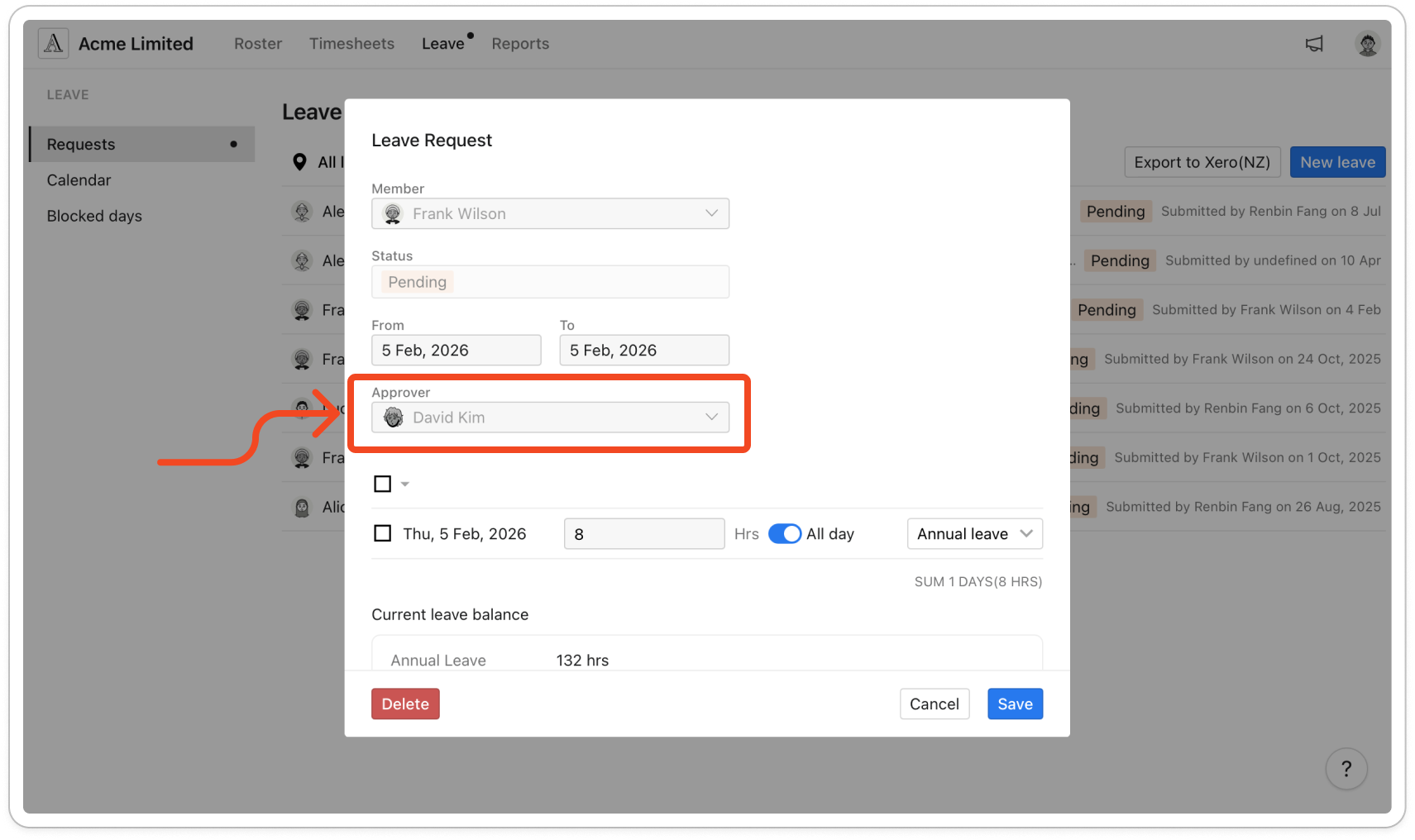
- To check the details before you decide, click the request. The Approver field shows who the manager picked. Click Close to go back to the list.
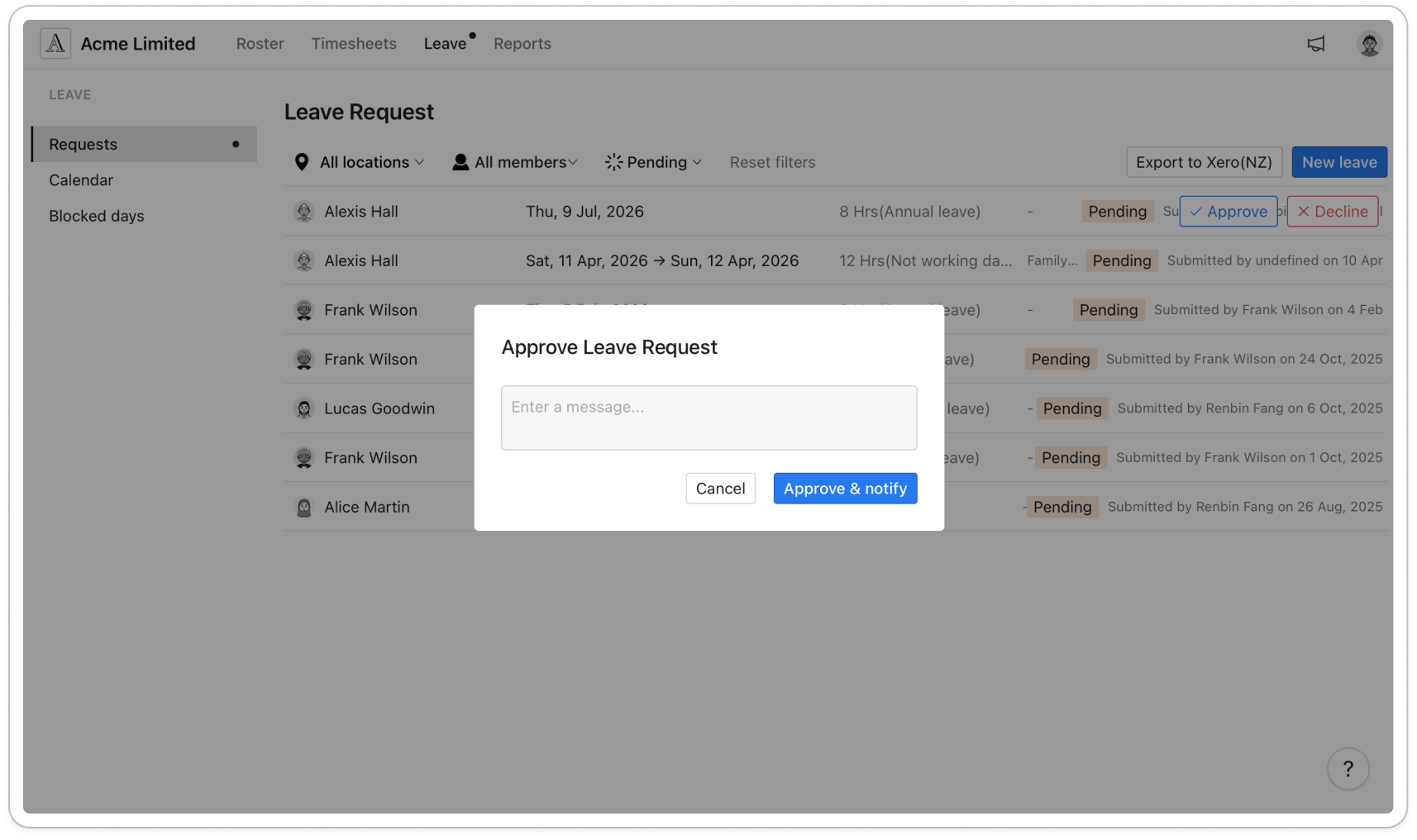
- Hover over the request and click Approve or Decline.
- Type a message for the manager if you want to, then click Approve & notify or Decline & notify. Timble emails the manager with your decision and your message.
Note: Only the approver the manager picked, or an admin, can approve or decline the request. The manager can't change their approver after sending the request, so if you're away, an admin can approve it for you.
Note: Once a manager has sent you a request, you can see their other requests too, including ones they sent to someone else. Approve and Decline still appear on those when you hover, but if you click one, Timble says "You are not the designated approver for this leave request" and the request stays pending.


