.svg)
Your plan is charged per location, so pay for each location your team uses and cancel the plan for any location you no longer need.
Open your locations
- Click your profile picture in the top right, then click Locations/Depts/Roles. The Locations tab opens.
- Locations on your plan are listed first. Any location that isn't on your plan is listed below them, greyed out, with an Activate location button.
Tip: On the Billing tab, Manage locations opens the same list.
Add a location to your plan
When you create a location with Add Location, the Activate location window opens as soon as you click Create Location. For a location that is already in the list, click Activate location on its row.
- In Activate location, check the Order summary. It shows the date the location becomes active, the price per location multiplied by your number of locations, and the total including GST.
- Click Pay & activate now.
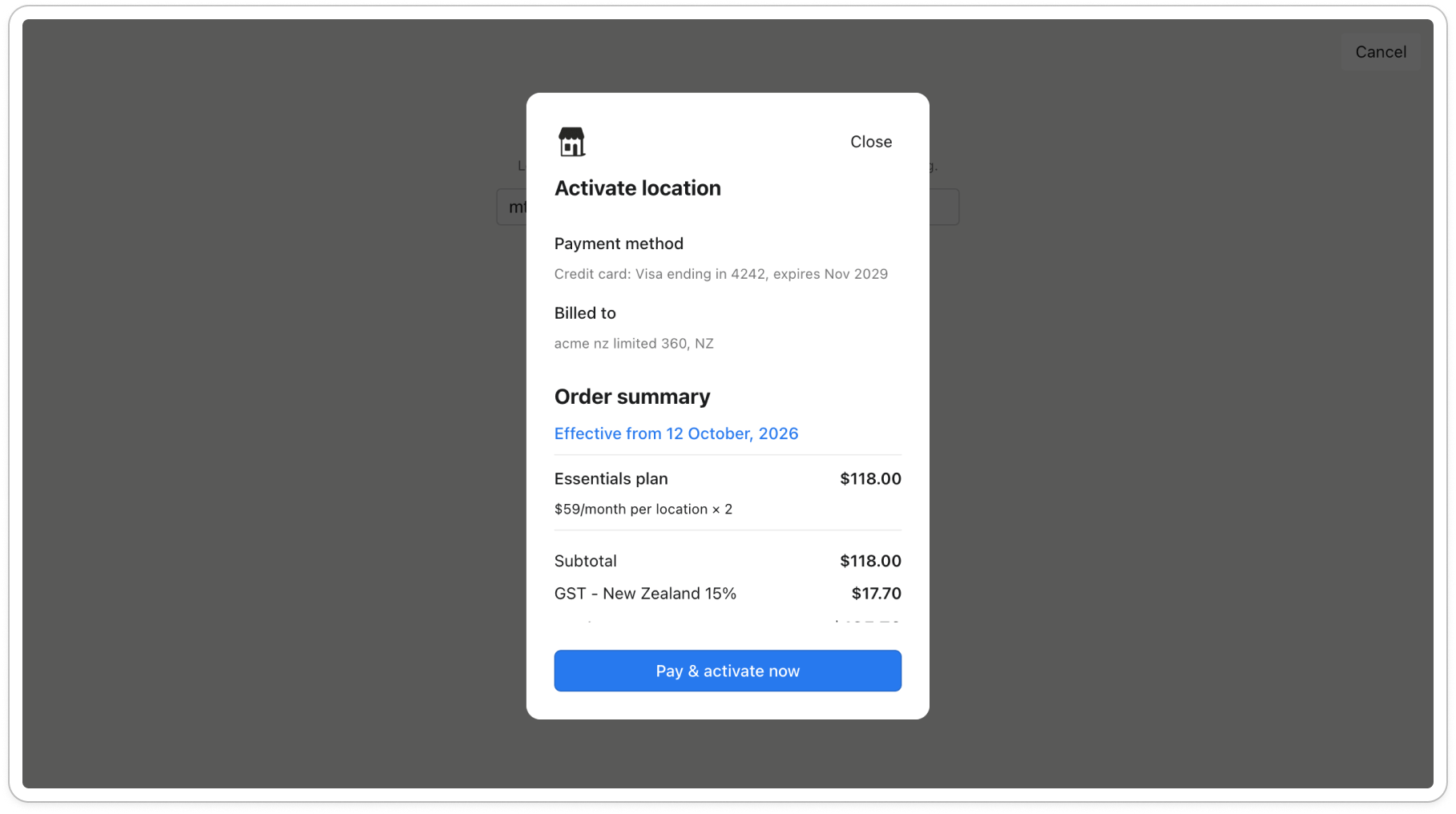
If you close the window instead, the location is still created, but it stays greyed out until you activate it.
Remove a location from your plan
- Click ... on the location's row and choose Cancel plan.
- Timble asks "Cancel plan for" followed by the location's name. Click the red Cancel plan for button to confirm. To keep the location on your plan, click Keep it.
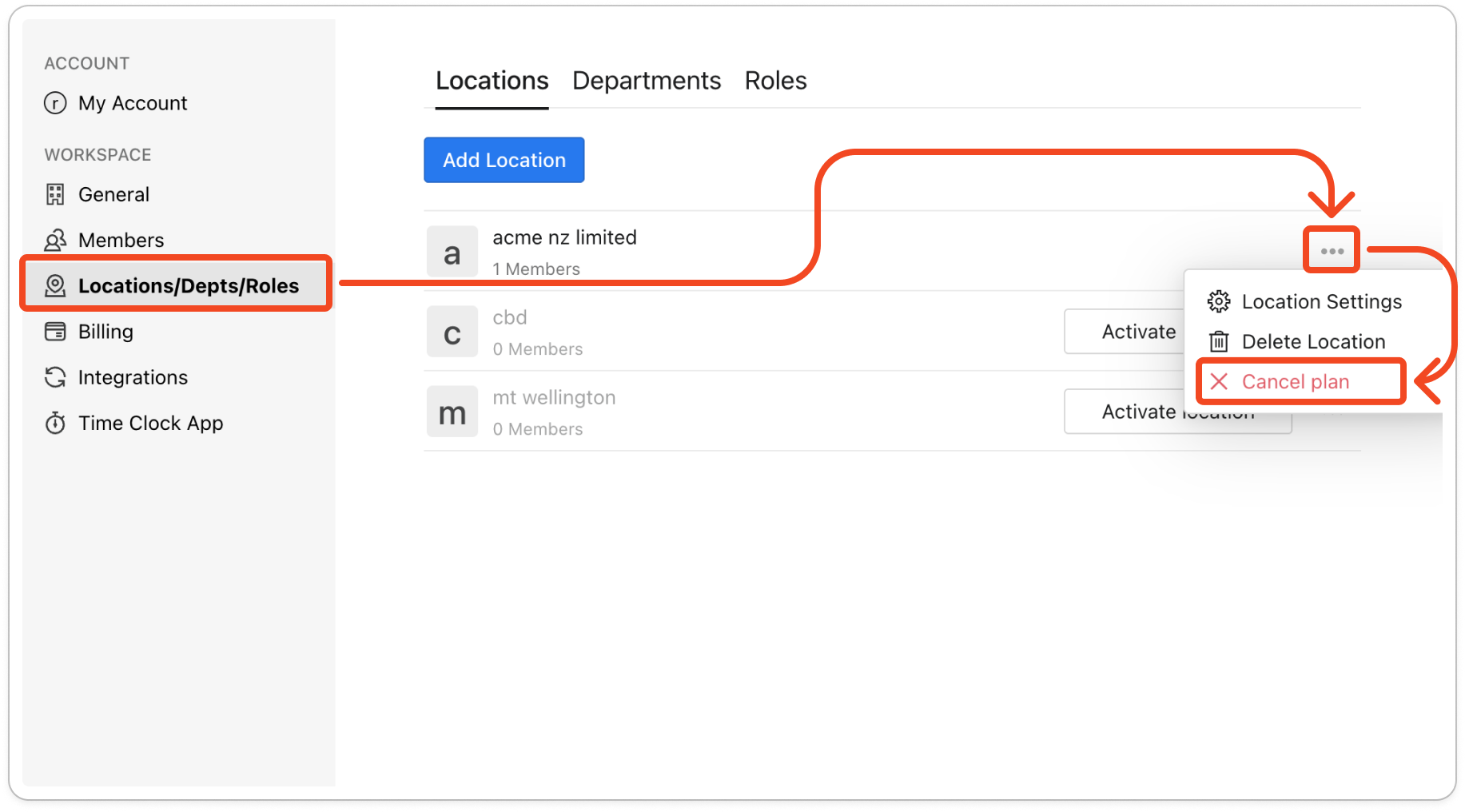
The location moves to the bottom of the list with an Activate location button. Your team can keep using it until the end of the current billing period, and you aren't charged for it after that. Once that date passes, the location's roster says it is deactivated until you activate it again.
Note: You can't cancel the plan for your last active location. To stop paying for Timble altogether, cancel your account subscription on the Billing tab instead.
Delete a location that's on your plan
A location on your plan can't be deleted. Cancel its plan first, following the steps above, and then delete the location from the same menu with Delete Location.


