.svg)
Leave a note on a day of the roster, such as a delivery, a stocktake or a busy event, so anyone who opens that week's roster on the web sees it.
Add or edit a note
- Open the Roster tab and go to the location and week the note is for. Each location keeps its own notes.
- Click the date at the top of the day's column, for example Mon 14.
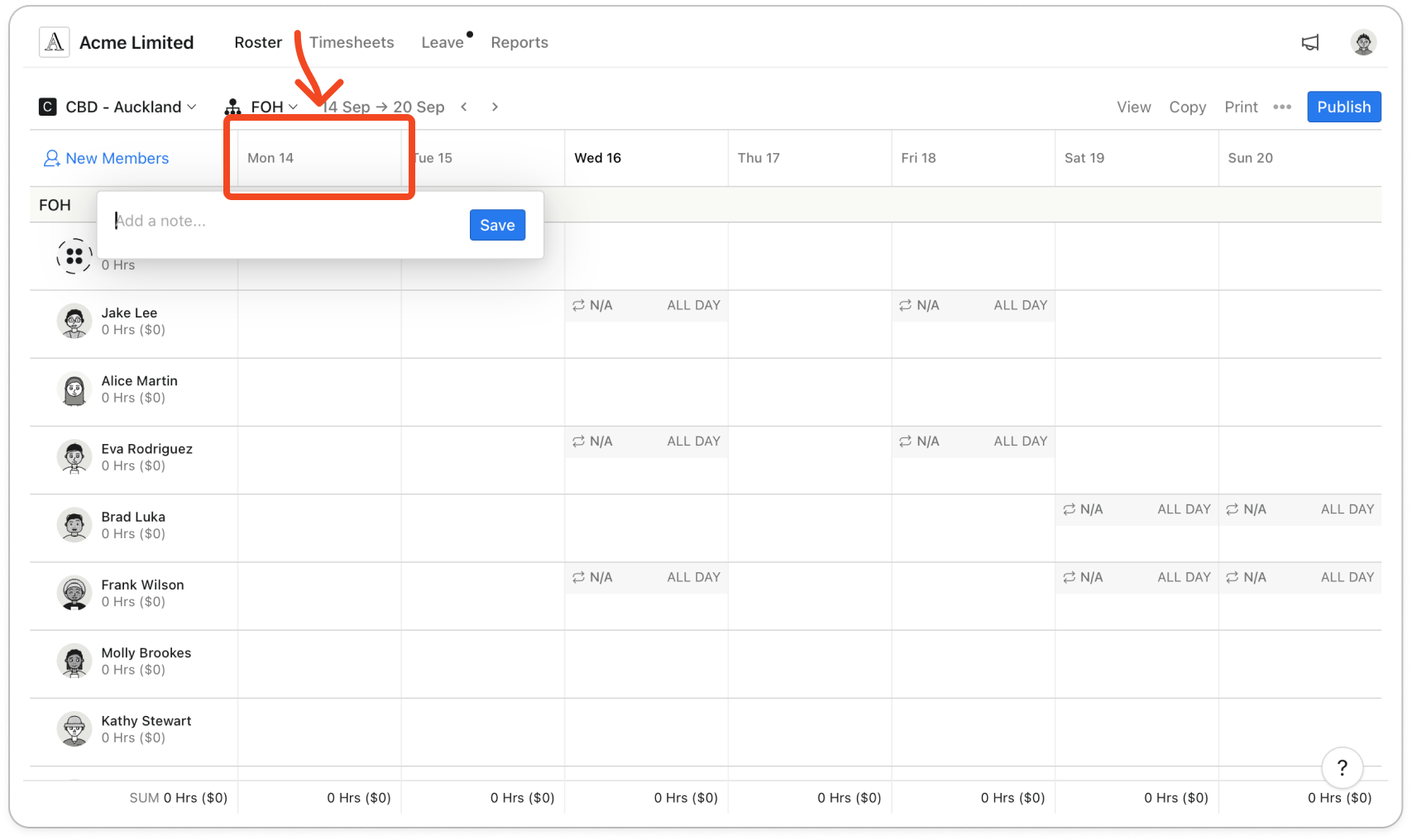
- Type your note into Add a note.... A note can be up to 500 characters.
- Click Save.
A small "i" icon now shows next to that date, so you can see which days have a note. To change a note, click the date again, edit the text and click Save. To remove it, delete all the text and click Save. The icon goes, and the note no longer prints.
Show notes on the roster
- Click View in the toolbar.
- Under Display options, turn on Show daily notes.
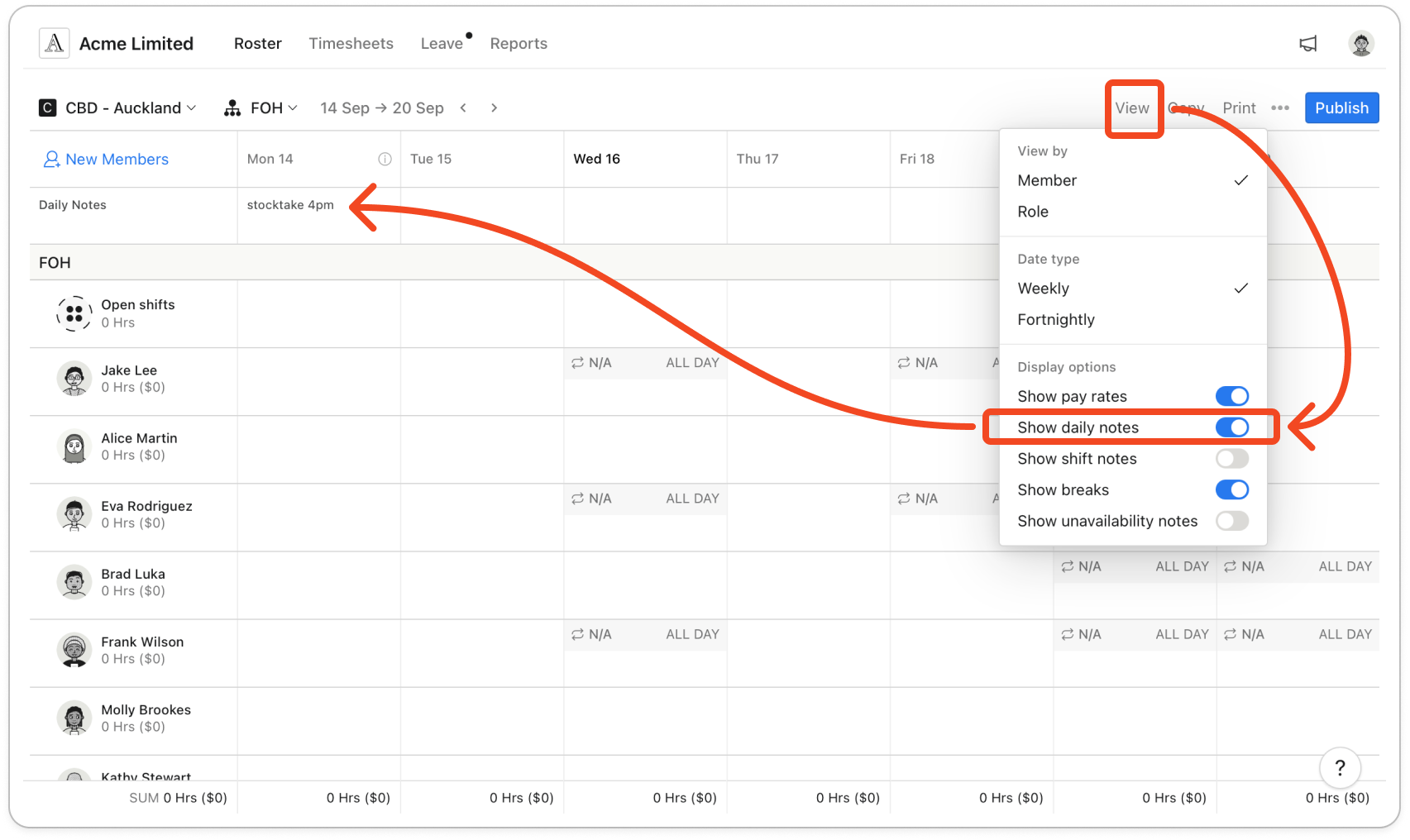
A Daily Notes row appears under the dates, with each day's note in its column. It only shows when at least one day in the week has a note. Timble remembers this setting in the browser you turned it on in.
Note: Daily notes show only on the roster in the web app, so members don't see them in the mobile app or the time clock app. They are included at the bottom of the roster under Notes: when you print it, export it as a PDF or share it with your team by email.


