.svg)
Set up the roles you roster shifts against, such as Cook or Supervisor, each with a colour and any default hours and breaks.
Add a role
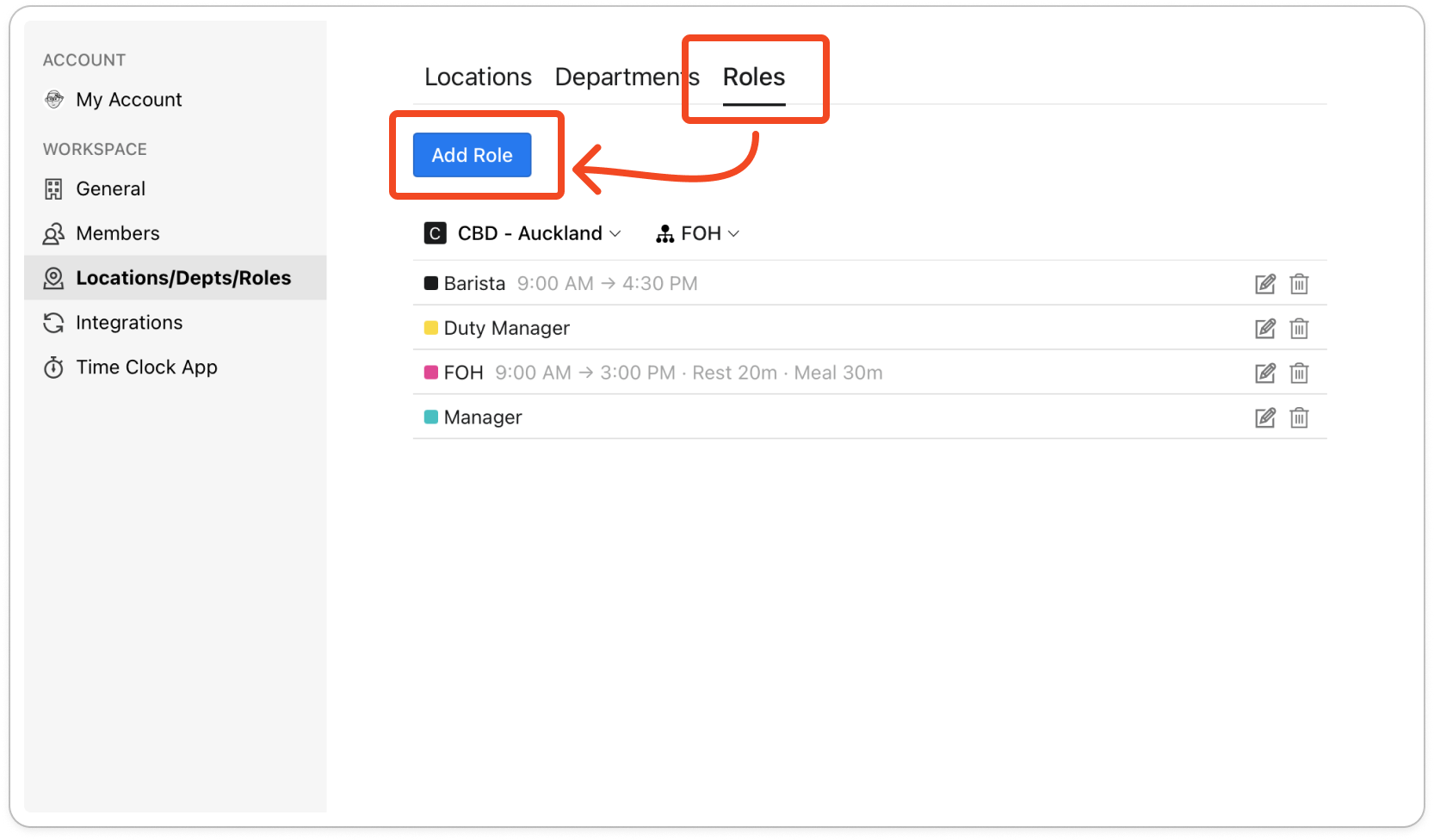
- Click your profile picture in the top right, then click Locations/Depts/Roles.
- Click the Roles tab. Use the buttons above the list to pick the location, and the department if it has one.
- Click Add Role.
- Type a name into Name, up to 25 characters, and click the colour square beside it to pick one of the ten colours.
- Under Departments or Locations, choose everywhere this role is worked. Timble creates the role once in each place you pick.
- To give new shifts for this role a set start and finish, tick Enable Default Hours and set the times.
- To give new shifts for this role set breaks, tick Enable Default Breaks and enter Rest break (paid) and Meal break (unpaid) in minutes, up to 240 each.
Note: Default hours and breaks are only a starting point. Whoever builds the roster can still change them on the shift.
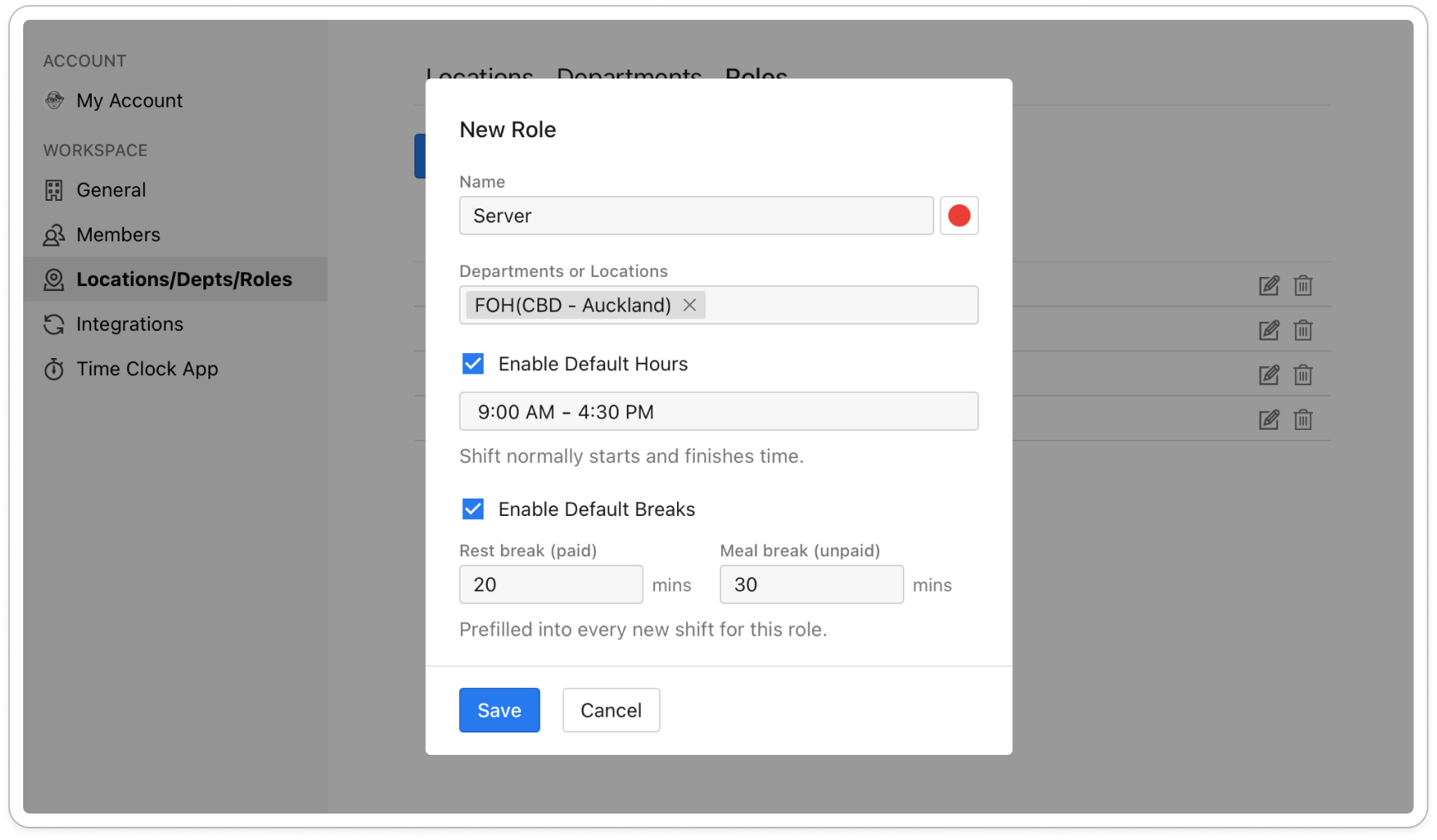
- Click Save.
Note: A role name has to be unique within its location or department. If it is taken, Timble says "The role already existed." Rename it and try again.
Tip: A role is only useful once members hold it. You assign roles on a member's Assignments tab under Members, which the People & permissions guides cover.
Edit a role
- On the Roles tab, click the role, or click the pencil icon on its row.
- Change the name, the colour, the default hours or the default breaks.
- Click Update.
Note: You can't move a role to another location or department. To have the same role somewhere else, add it there.
Delete a role
- On the Roles tab, click the bin icon on the role's row.
- Timble asks "This role may be used by existing shifts. Are you sure you want to delete it?" Click Delete.
Note: Deleting a role removes it from the list and from the role picker on new shifts.


