.svg)
Add the people you roster to Timble, then send each one an invitation so they can log in and see their shifts.
Add members
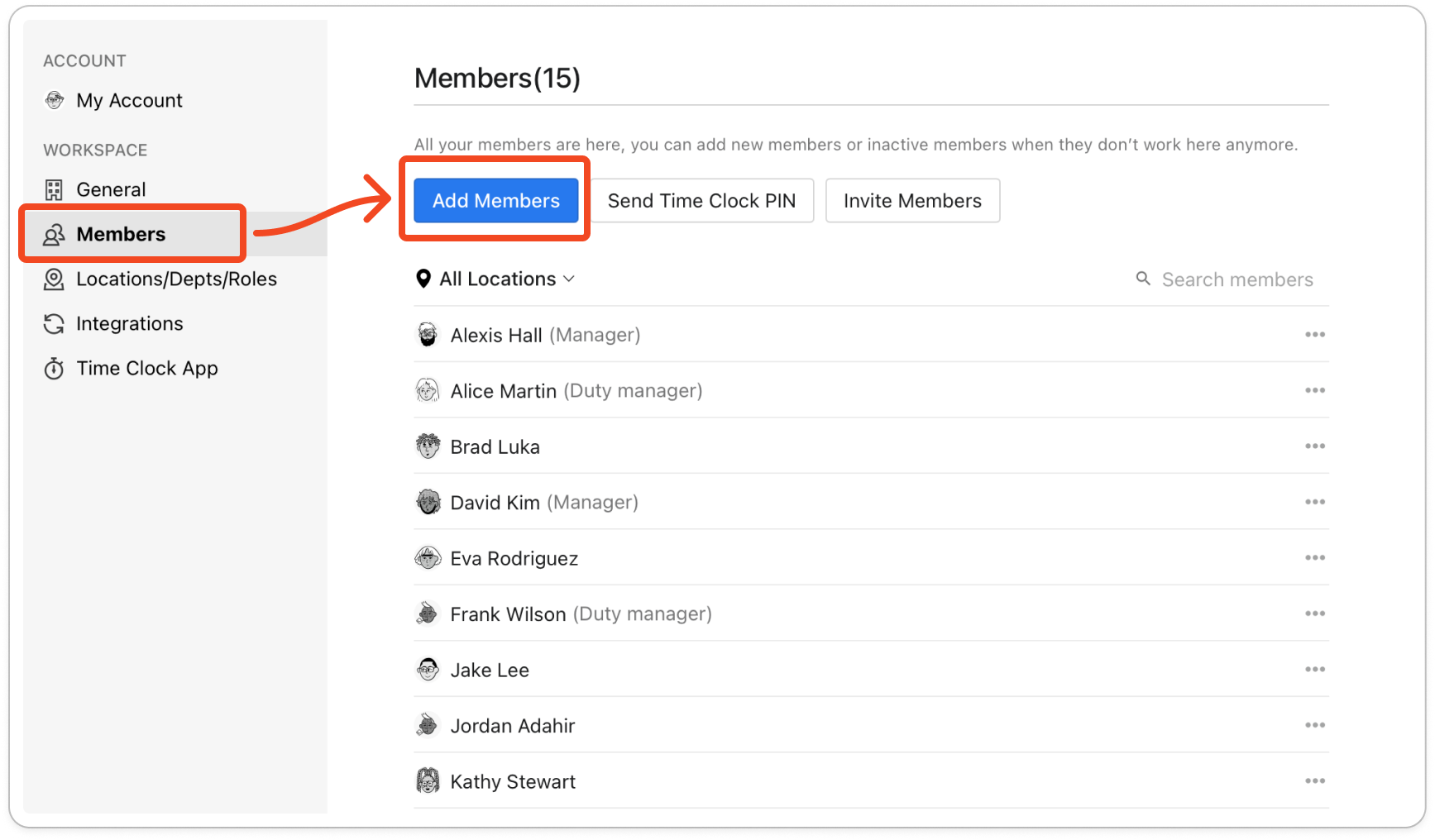
- Click your profile picture in the top right, then click Members.
- Click Add Members.
- Pick the Location the new members work at, and the Department if the location has them, then click Continue.
- Type each person's Full name. Add their Email(Optional) if you want to invite them, and their Mobile(Optional) if you have it.
- Check the Hourly Rate. It starts at the minimum wage, and you can change it now or later in the member's profile.
- Under Roles, pick the roles this person works. Type a name that isn't in the list to create a new role.
- Click Add another one for each extra person. Leave Invite members via email ticked if you want everyone with an email address invited as soon as you save.
Tip: To add a lot of people at once, click Upload .CSV File and use Download Sample CSV for the layout.
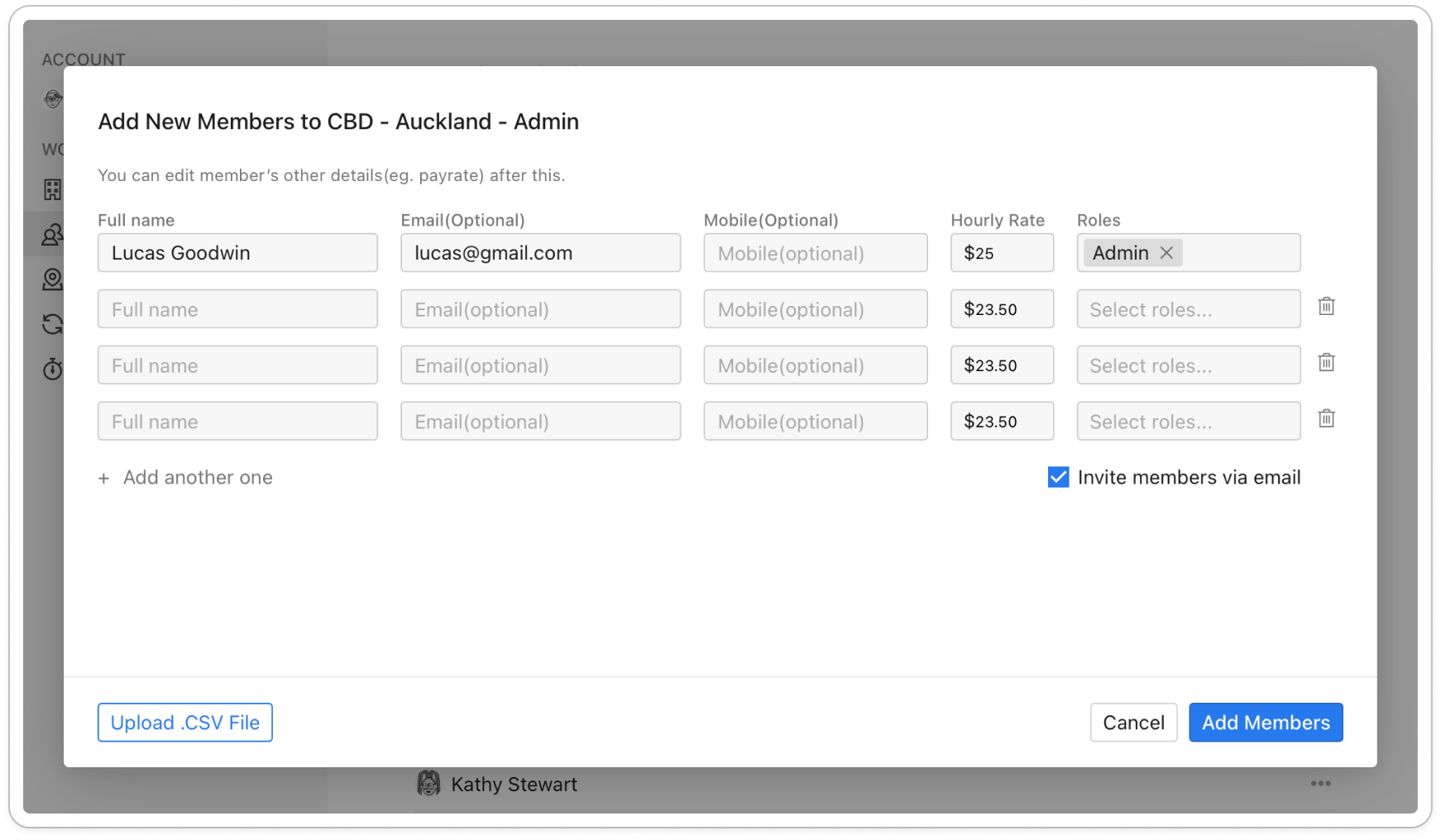
- Click Add Members.
Note: Every member needs their own email address. If one is already used by another member in your business, Timble asks you to change it before it saves.
Invite members
Use this for anyone you added without an email, or with Invite members via email unticked. They show (Not invited) in the Members list.
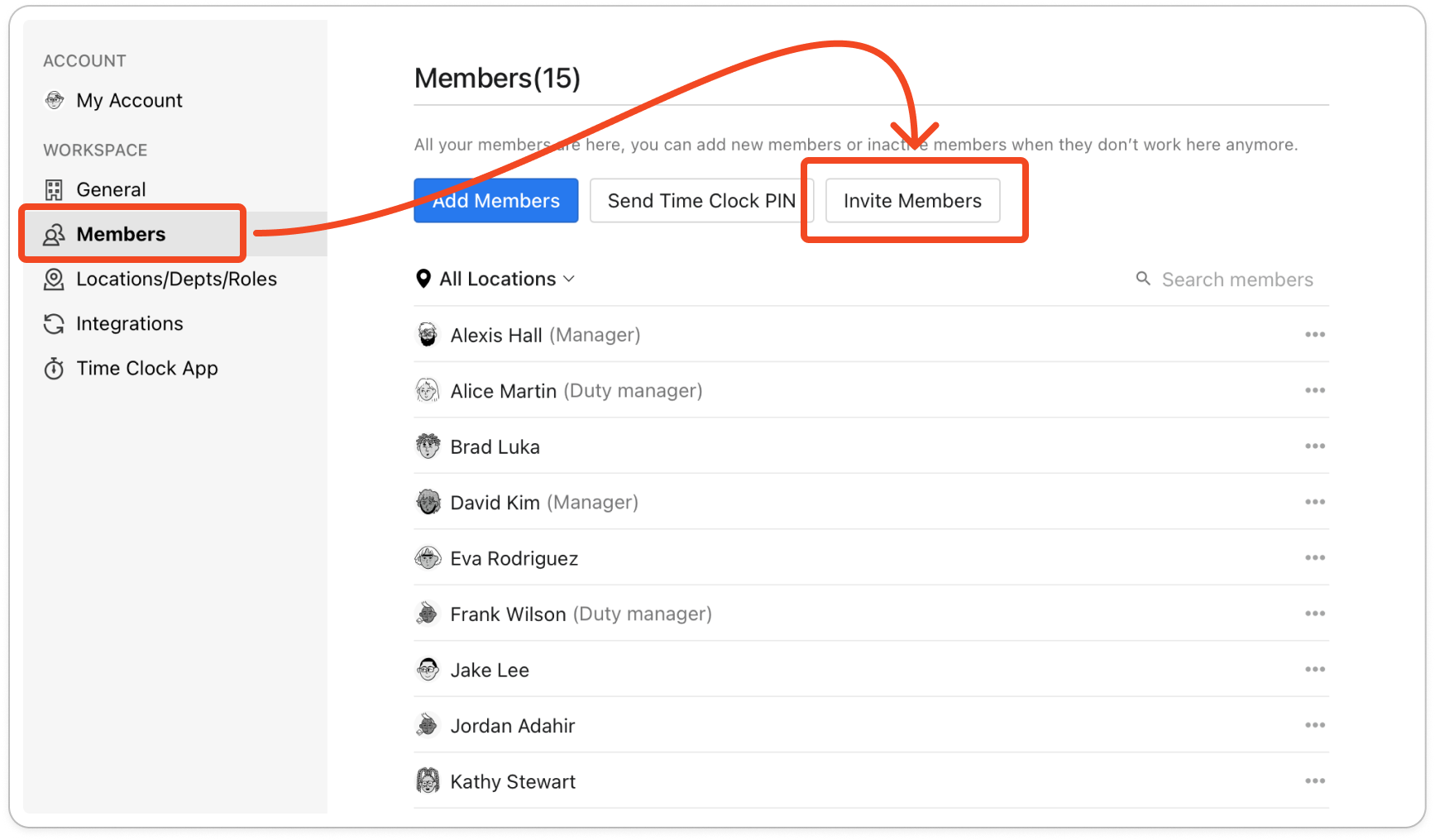
- On the Members screen, click Invite Members.
- Tick each person you want to invite. Someone marked (No Email) can't be ticked. Add an email address to their profile first.
- Click Invite.
Note: Each person gets the invitation email, and their name shows (Invited) in the Members list until they accept.


