.svg)
Add the hours for a member who worked a shift but never clocked in or out.
- Click Timesheets at the top of the web app.
- Use the date control to show the week, or date range, that includes the day the member worked. You can only choose a day that sits inside the range showing on screen.
Tip: If the shift was already on the roster, you may not need to enter the hours by hand. When the setting for suggesting unclocked shifts is turned on for your business, the shift appears under Unclocked shifts for the member's name, and Import adds it to their timesheet.
- Click New Entry in the toolbar. The New Timesheet Entry window opens.
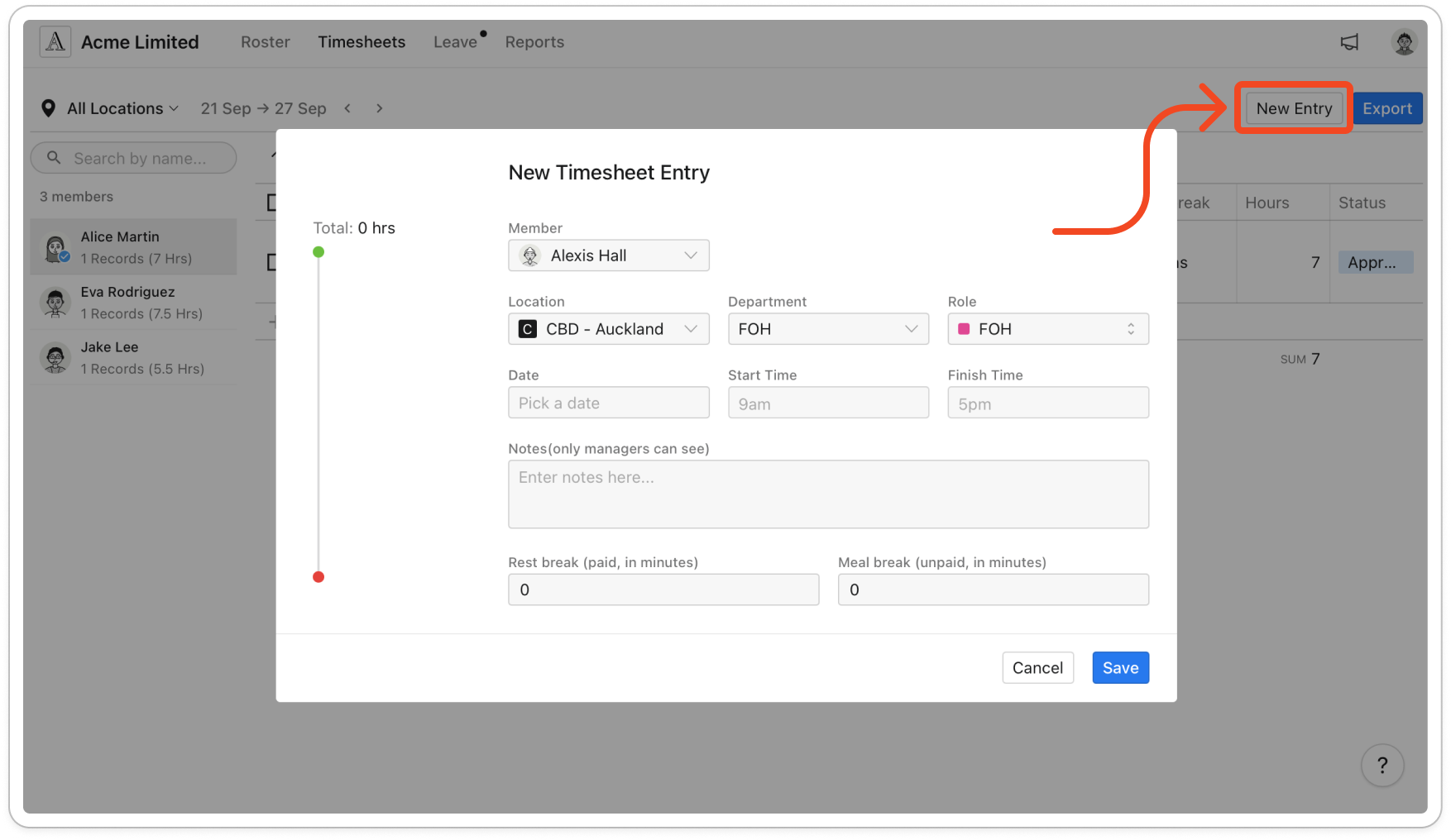
- Under Member, choose the member.
- Check Location, Department and Role. Timble fills these in from the locations, departments and roles the member is assigned to, and each list offers only the ones that member has. Change them if the member worked somewhere else. Department stays empty when the member isn't in a department at that location.
- Click Date and pick the day.
- Choose a Start Time and a Finish Time. If the finish time is earlier than the start time, Timble counts the finish as falling on the next day, which is how you enter a shift that runs past midnight.
Note: You can save the entry without a Finish Time, but it can't be approved until you add one.
- Enter the Rest break (paid, in minutes) and the Meal break (unpaid, in minutes), or leave both empty if the member took no break. Total on the left updates as you go. The meal break comes off the total hours, and the rest break does not.
- Type anything worth recording in the Notes(only managers can see) box. The member doesn't see this note.
- Click Save.
Note: The entry saves as Pending, just like an entry a member clocked in and out for. It still needs approving before it goes to payroll.


