.svg)
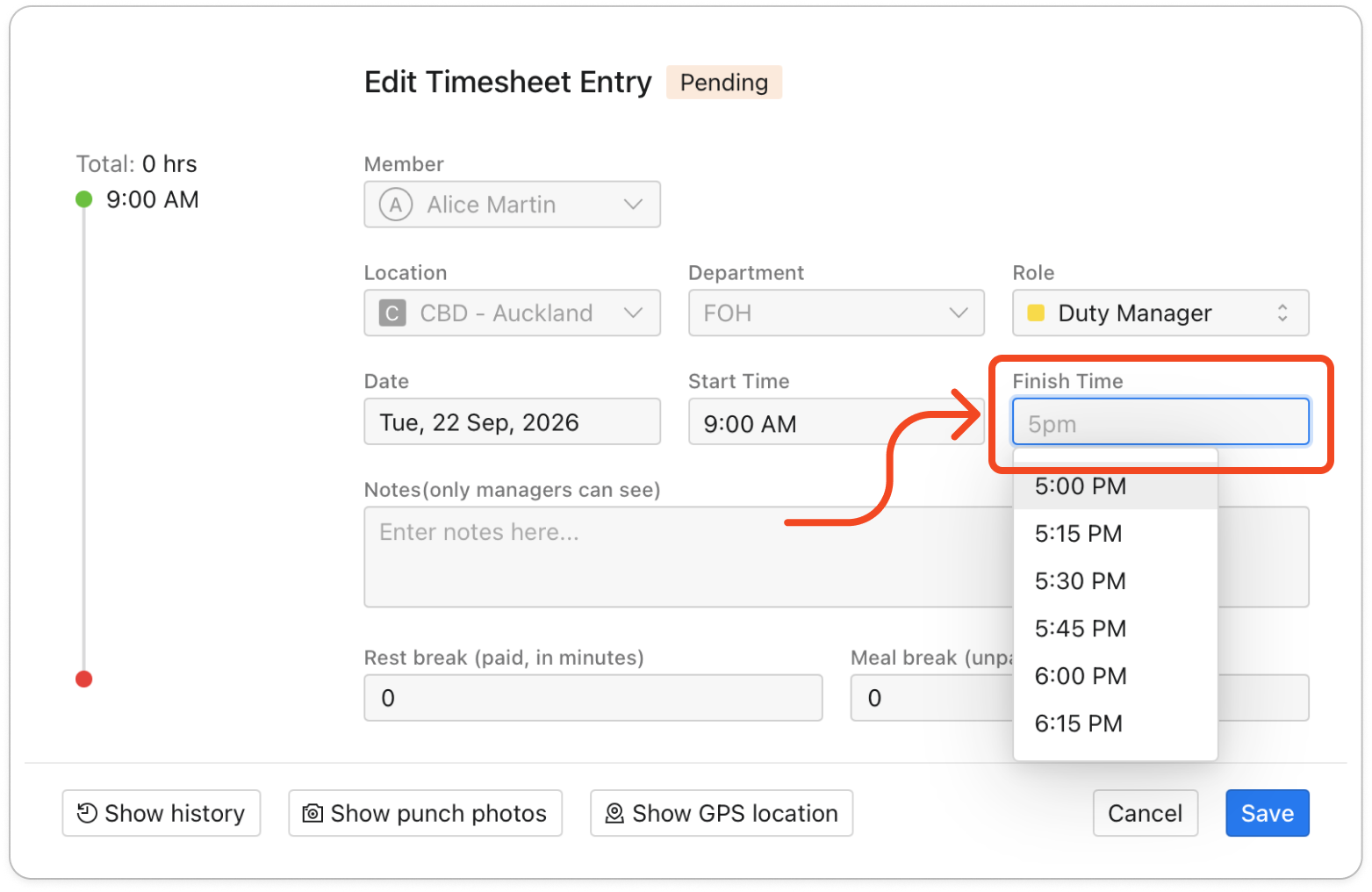
Open the member's entry on the Timesheets page, set Finish Time to when they really finished, and click Save. Timble doesn't clock anyone out on its own, so the entry stays open until you add a finish time.
- Click Timesheets at the top.
- Click the member in the list on the left. To find them faster, type their name in Search by name....
- Find the day of the shift. In the Actual column, an open entry shows the start time followed by N/A.
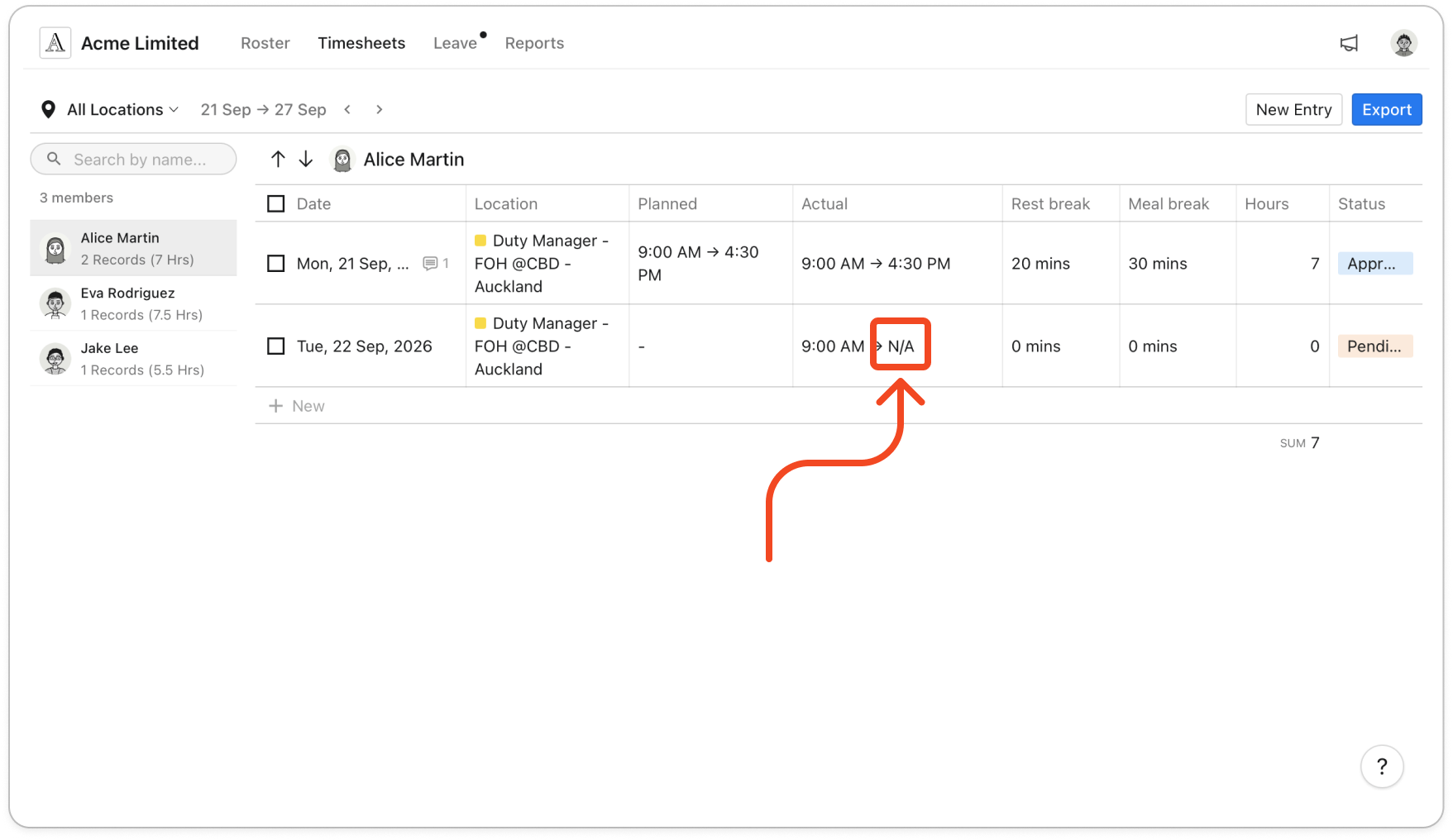
- Click the row to open Edit Timesheet Entry.
- Under Finish Time, pick when the member really finished. If that time is earlier than the start time, Timble treats it as the next day.
- If you want a record of why the time changed, type the reason under Notes(only managers can see). Then click Save.